Activities
Activities are where you can record interactions and manage the Whānau in your care.
We’ve already looked at how to review and filter Activities — here we’ll focus on adding new information.
Prerequisites
It might seem obvious, but it’s worth clarifying that you can only record Activities for clients who:
- Have been set up correctly in Kotahi, and
- Have been added to the Whānau Ora service.
Please refer back to the previous pages — Adding a new client and Understanding client records — if you’re stuck here.
Additionally, we recommend setting up the whole Whānau beforehand, so you can share the Activity with all of them if necessary.
Starting an Activity
Once your client is ready, you can select the Activity you want to complete from the list.
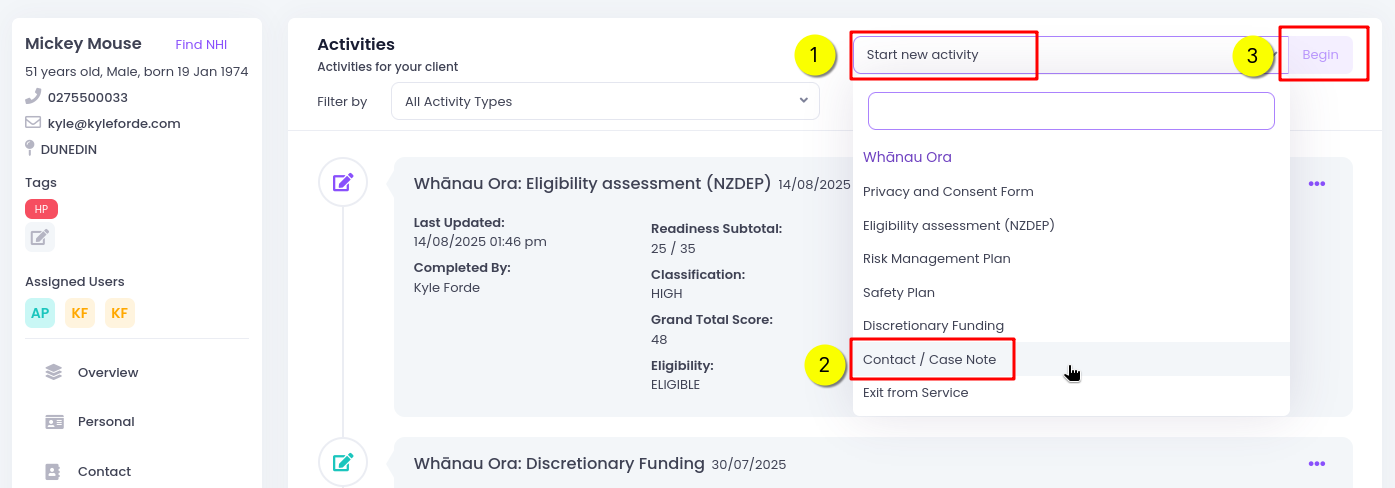
When you click Begin, you’ll be taken straight to that Activity.
Parking Forms
You may notice the yellow Park Form button in the top right of every Activity form.
This feature lets you pause your work and return to it later without losing progress.
Steps
-
Park a form
Click Park Form to save the Activity as a draft.
-
Reopen a parked form
Go to the client’s Activity tab, find the Activity marked with Parked Form has not been completed,
then click the menu (…) and choose Finish to continue working (or Delete if it’s no longer needed).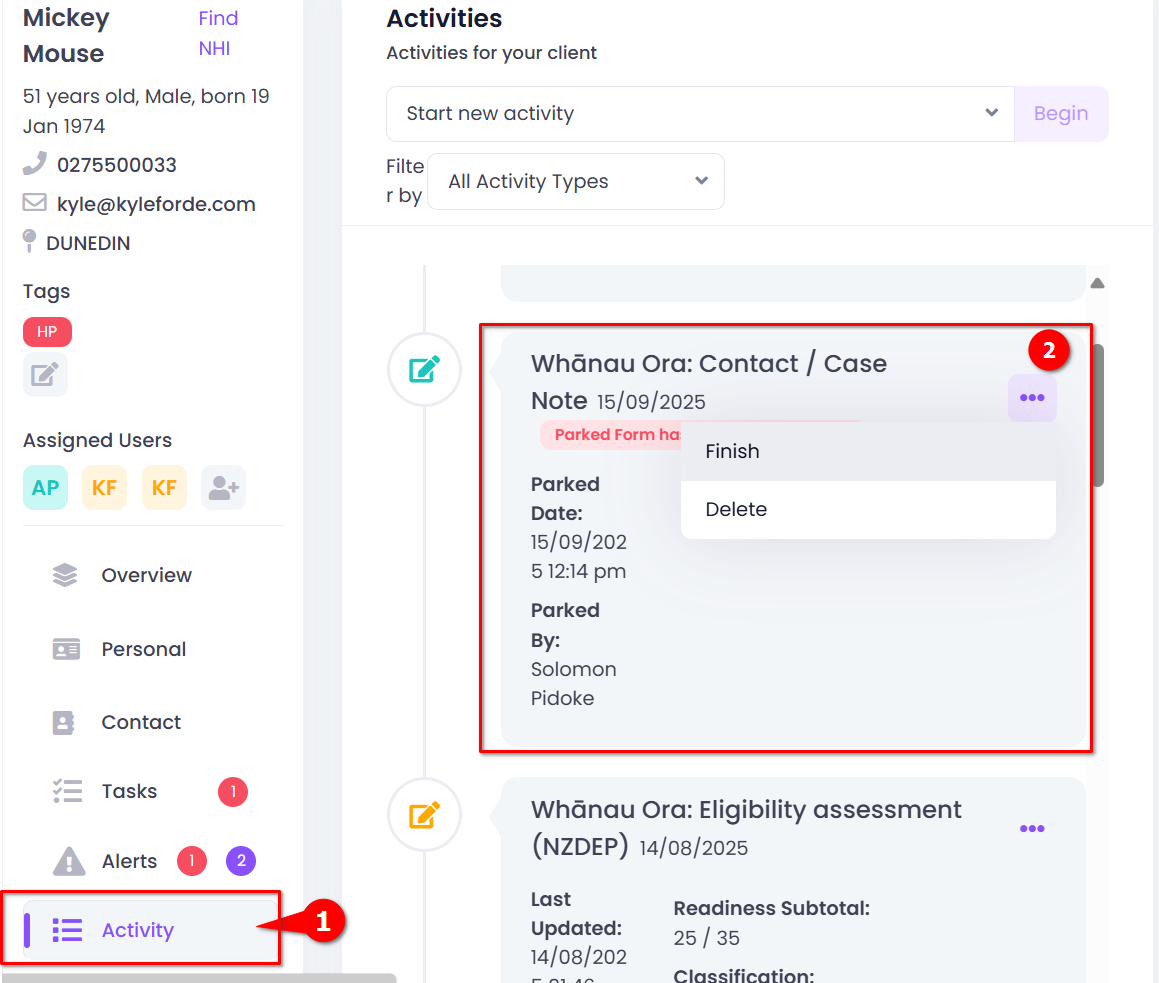
-
Complete the Activity
When you’re finished, click Save in the top right. ✅
Use Park Form if you’re interrupted or don’t yet have all the information you need to finish the Activity.
Common Fields in Activities
Every Activity form in Kotahi contains a few standard fields.
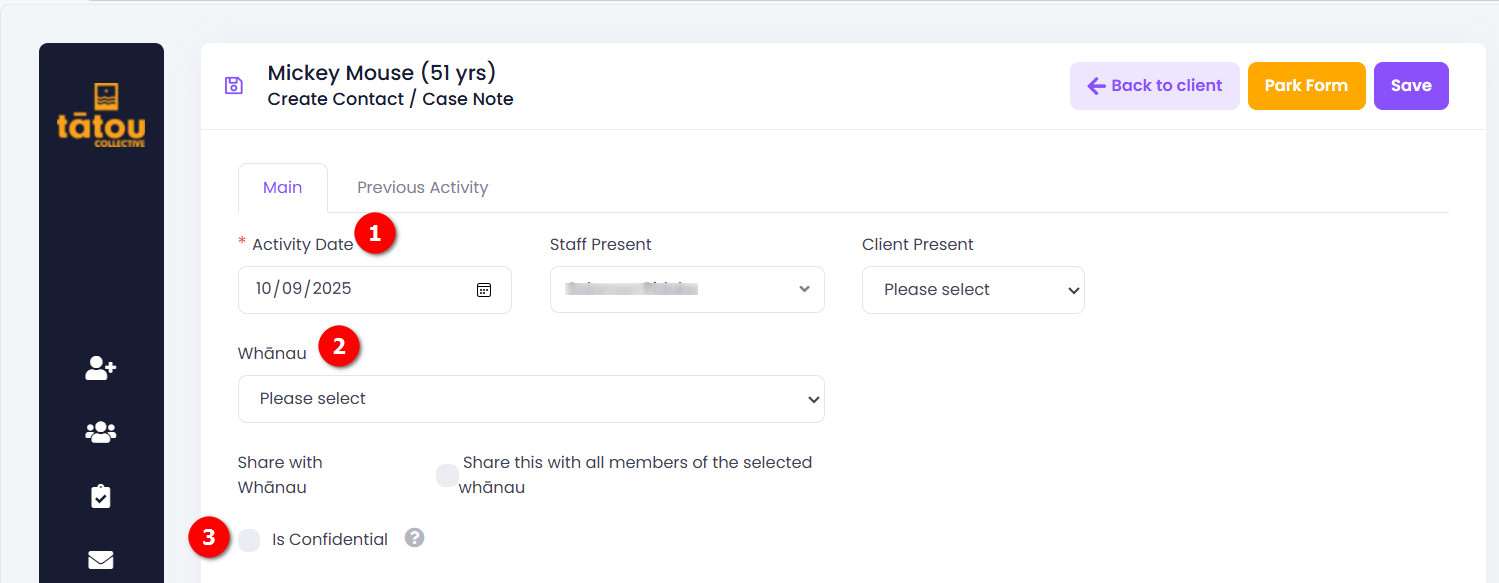
| Field | Description |
|---|---|
| Activity Date | Set the date of the Activity (this can be backdated if it was completed earlier). |
| Whānau | Choose the Whānau/Family this Activity relates to. You can either select specific members or tick Share this with all members of the selected Whānau. |
| Is Confidential | Mark this if the Activity should remain confidential. When selected, the note is flagged as sensitive. Any views will be logged in the Audit Trail, and the person who created the note will be notified. |
Available Activities
Each Activity is designed for a specific purpose. The table below explains when to use each one.
These have been carefully designed to support the Whānau Ora workflow and align with contract requirements.
Good rule of thumb: Always choose the Activity that most closely relates to the support you are providing.
If no specific Activity applies, use the generic Contact / Case Note.
| Activity | When to use |
|---|---|
| Privacy and Consent | Complete as soon as possible with a Whānau. This MUST be done before performing an NHI search or entering any case management information. |
| Eligibility Assessment | At intake — gather information here to calculate an overall risk score for the Whānau. |
| Risk Management Plan | Complete when a Whānau has identified risks that require monitoring, support, or mitigation strategies. |
| Safety Plan | Use when immediate safety concerns are identified and a clear, actionable plan needs to be created with the Whānau. |
| Discretionary Funding | After Tātou Collective approvals — use this Activity to track spend against a flexifund. |
| Exit from Service | Complete when you need to offboard a client or Whānau for any reason. |
| Contact / Case Note | For all other updates, general notes, or information that does not fit into a specific Activity. |
Privacy and Consent Form
This form confirms that whānau agree to participate in services delivered through Kotahi.
It records consent for collecting and sharing information, and must be completed before any support can begin.
1. On Paper
- Complete the paper form together with the client.
- Once signed, upload the form into Kotahi.
- Save the form in the top right. ✅
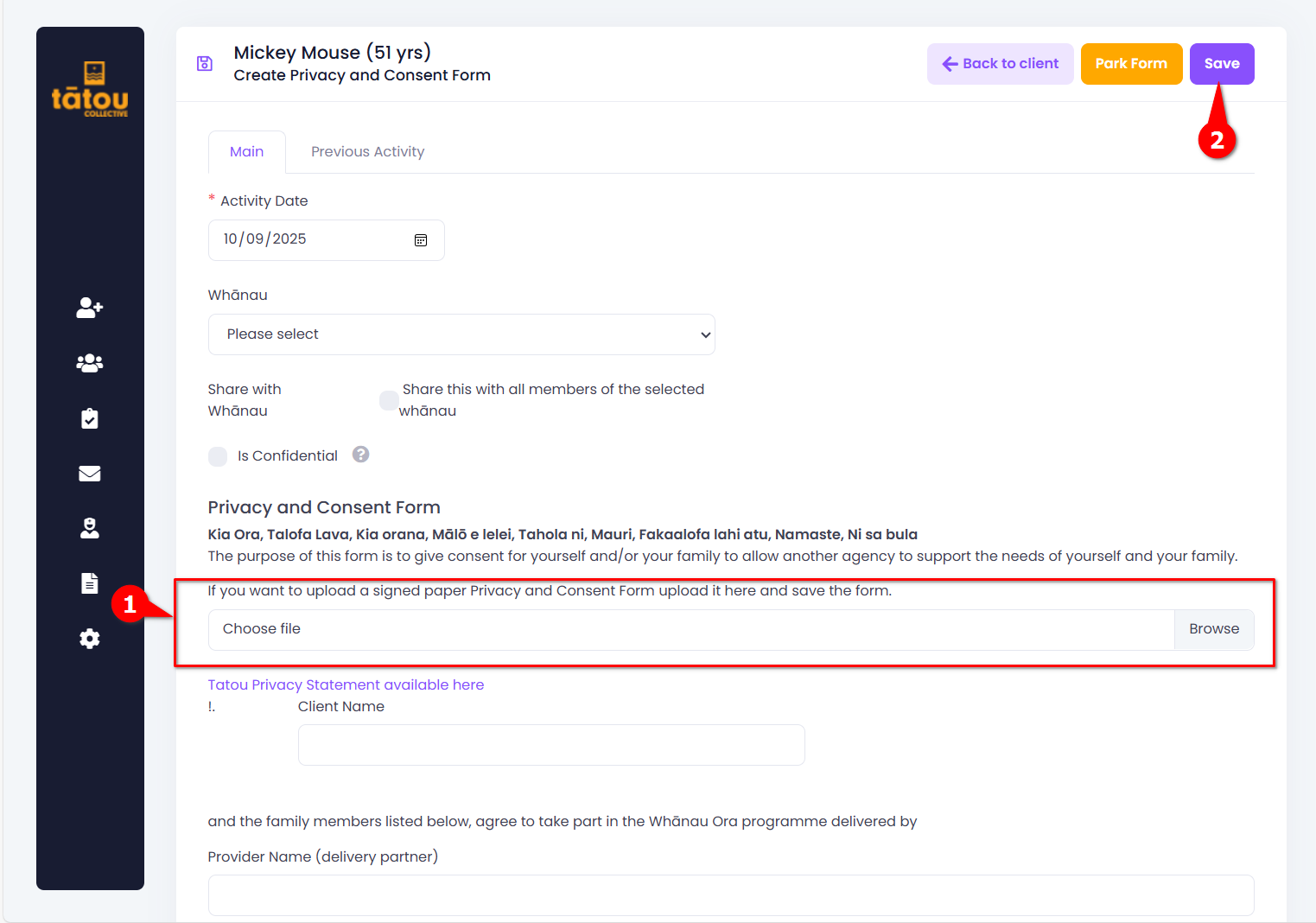
2. Online
- Open the Privacy and Consent form in Kotahi with the client.
- Work through the sections together, making sure to complete:
- Whānau details – all members covered by this agreement.
- Consent statements – read and confirm understanding.
- Digital signature – captured in Kotahi.
List all whānau members included in the agreement, their relationship to the primary contact,
and (if signing for someone else) your legal authority (e.g. parent, legal guardian).
- Once all required fields are complete and the client has signed digitally, save the form. ✅
Eligibility Assessment
This is a screening process — it helps calculate an overall risk score for the whānau, but it is not a full needs assessment.
Use this Activity during intake to record key information.
Steps in Kotahi (placeholder):
-
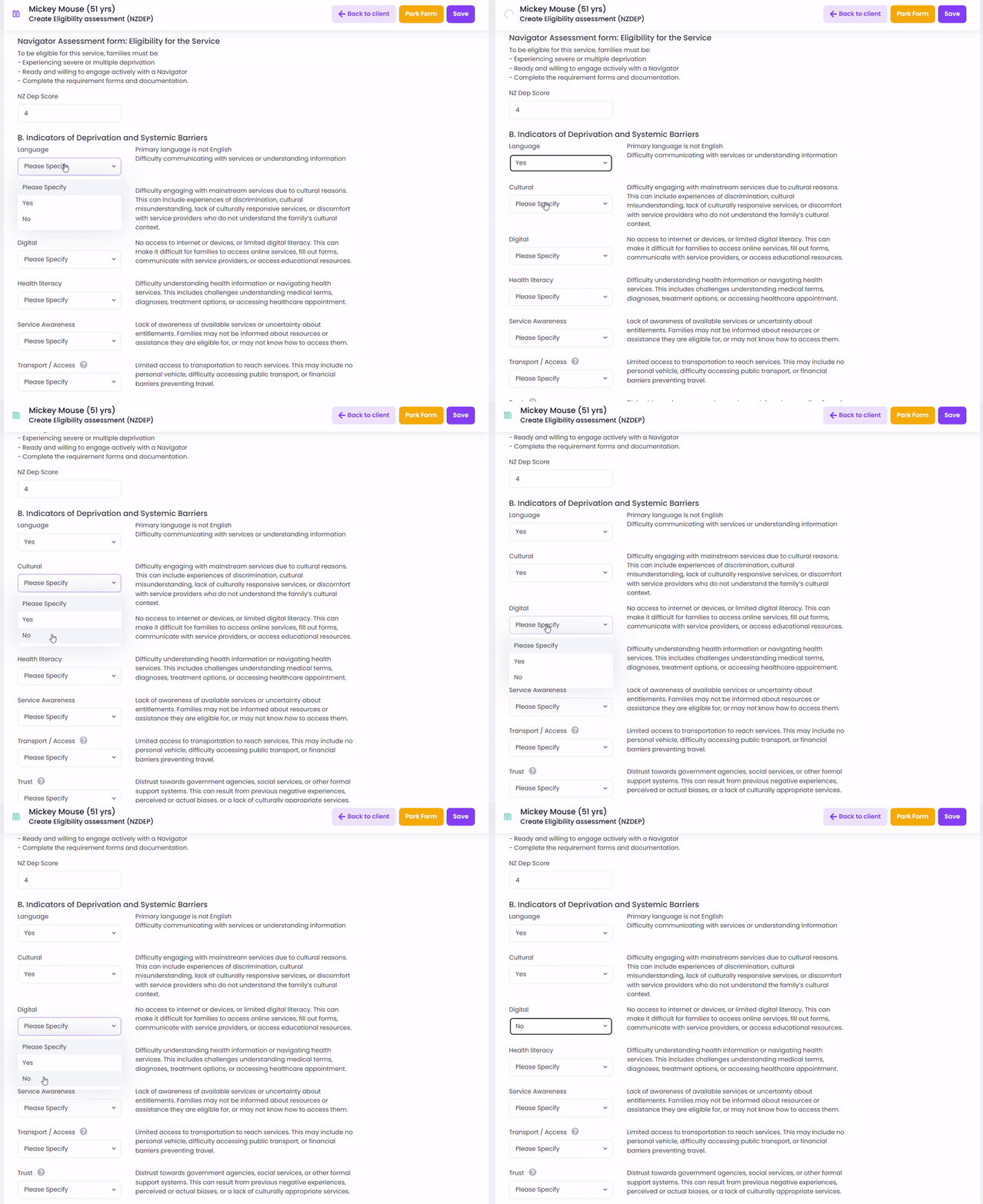
For each statement under Indicators of Deprivation and Systemic Barriers, select Yes or No.
- Each “Yes” answer adds to the Deprivation Indicator subtotal.
- The subtotal is then used to calculate the overall Risk Score.
-
The Risk Score will display as one of the following:
- LOW Risk
- MEDIUM Risk
- HIGH Risk
- VERY HIGH Risk
 tip
tipSome “Yes” answers may require you to add a narrative, regardless of the overall risk score.
-
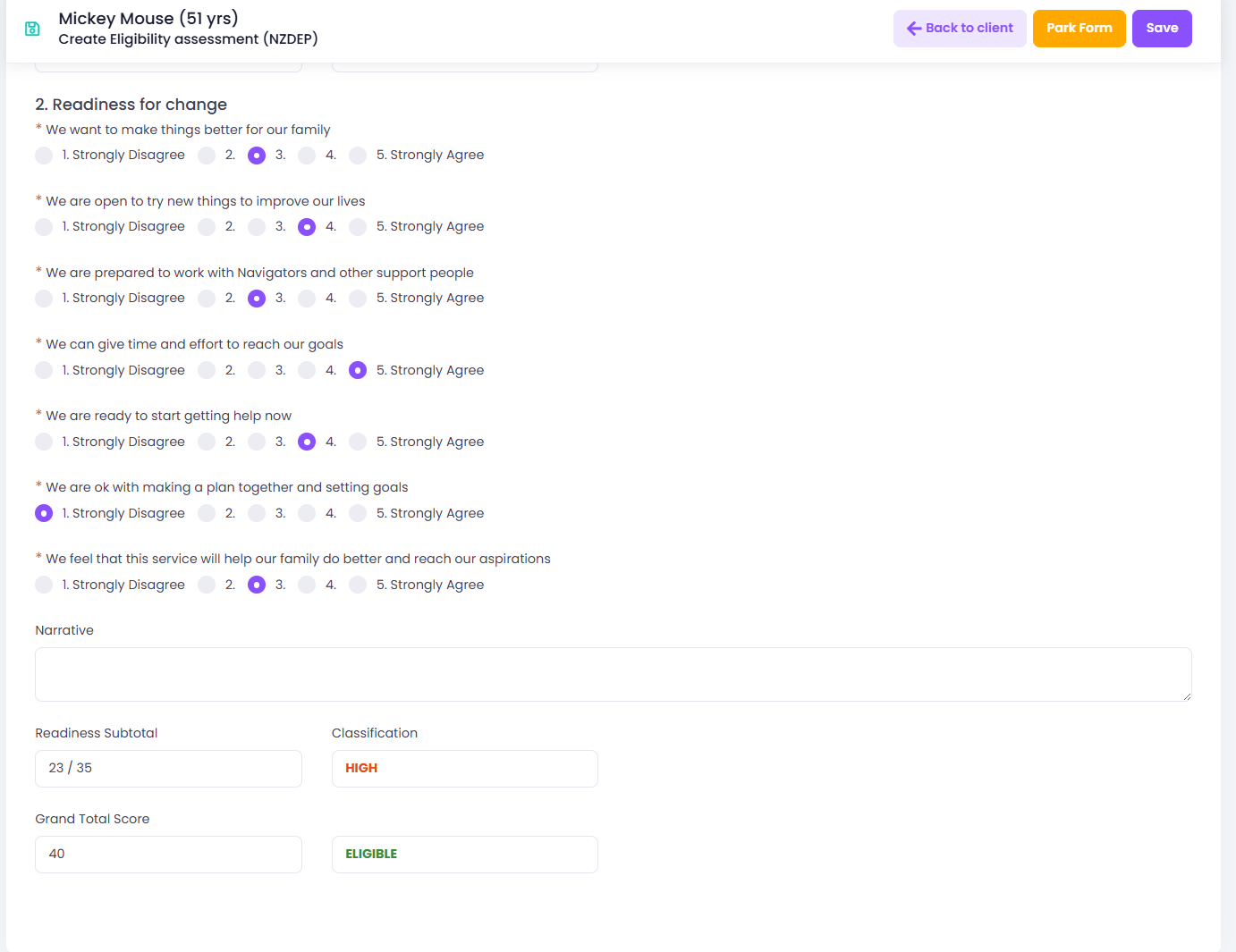
Complete the Readiness for Change section (scale of 1 = strongly disagree → 5 = strongly agree).
-
Review the Grand Total Score and overall Eligibility outcome.
-
Click Save in the top right to finish. ✅
Risk Management Plan
Use this Activity when a whānau has identified risks that require ongoing monitoring, support, or mitigation strategies.
It is not required for every whānau — only complete it when risks are present.
This Activity is often created when risks are first identified in the Eligibility Assessment.
Steps in Kotahi:
-
Begin the Risk Management Plan Activity
-
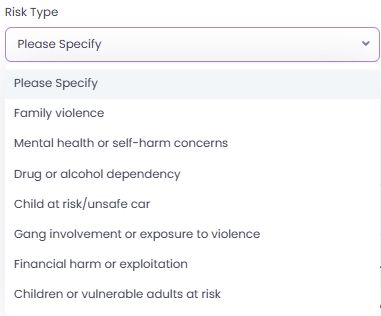
Record the Risk Summary
- Enter the date of the Initial Risk Screen.
- Identify the key risks together with the whānau.
- Provide a short description of the situation and its impacts.
-
Capture the Whānau Response
- Document how the whānau would like to respond to the identified risks.
- Note any preferences for support, safety, or involvement of providers.
-
Add Services or Supports
- Record which providers or agencies will be involved.
- Include status, responsibilities, and whether the service or support is confirmed or pending.
-
Confirm the Current Risk Level
- Select the appropriate risk level (Low / Moderate / High).
- Record agreed safety actions and timeframes.
- Use the built-in prompts to guide your kōrero with the whānau.
-
Whānau Safety Plan
- Work through the Key Questions section with the whānau and record any important notes.
-
Final Sign-Off – Follow-Up Actions
- Enter the agreed actions, who is responsible, and the due date.
- Review and update these actions regularly as circumstances change. ✅
The Risk Management Plan is an active form — update it whenever risks, supports, or actions change for the whānau.
Safety Plan
Use this Activity when immediate safety concerns are identified and a clear, actionable plan is required to keep the whānau safe.
The plan should be developed with the whānau and shared so everyone understands the agreed steps.
This Activity may also follow on from a Risk Management Plan if urgent safety issues are identified.
Steps in Kotahi:
-
Begin the Safety Plan Activity
- Record the date and who the plan is prepared by.
- Enter a summary of the risk.
-
Document Safety Risks
- For each identified risk, record:
- The risk area (e.g., family violence, housing insecurity).
- A short description.
- The severity of the risk.
- Add more risks if required.
- For each identified risk, record:
-
Agencies Involved
- List any agencies or providers working with the whānau.
- Include contact names, positions, and details.
- Record emergency and crisis contacts.
-
Agreed Actions to Remain Safe
- Document agreed safety steps, such as:
- Safe places away from home.
- Whānau, relatives, or friends the whānau can call on.
- Alternate emergency contacts.
- Any other agreed safety actions.
- Document agreed safety steps, such as:
-
Roles and Responsibilities
- Record responsibilities for the whānau, Navigator, and others (if relevant).
- Note whether each responsibility is confirmed or pending.
-
Whānau Consent
- Tick if the whānau has agreed to share the plan with their support network.
- Capture required signatures (Whānau Lead and Navigator).
-
Save the Plan ✅
- Review the plan with the whānau and update it whenever circumstances change.
Discretionary Funding
Use this Activity to record and track spending against a client’s flexifund allocation.
Tātou Collective approval is only required for requests above $1,500.
Steps in Kotahi:
- After completing the Common Fields, enter the Amount Requested.
- Select the relevant Hauora Domain and Outcome the request supports.
- Add a short narrative explaining the purpose and expected impact of the funding.
- Upload any supporting documents (e.g., quotes, receipts, approvals).
- Click Save to record the activity. ✅
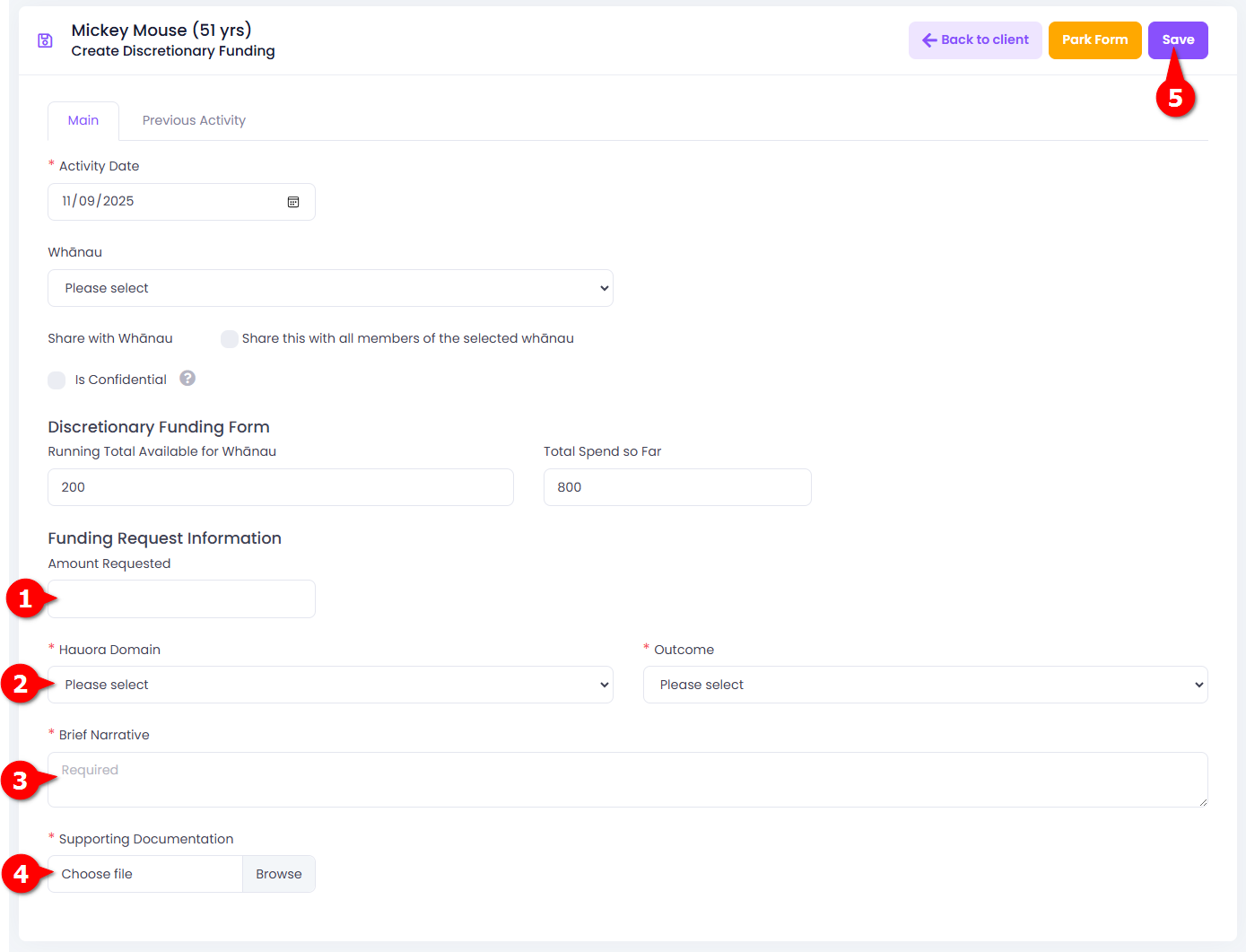
The Amount Requested automatically updates the client’s running totals:
- It adds to the client’s Total Spend to date.
- It reduces the Running Total Available balance.
Example:
If the current Running Total Available is $200 and you request $50, the next form will display:
- Total Spend: $850
- Running Total Available: $150
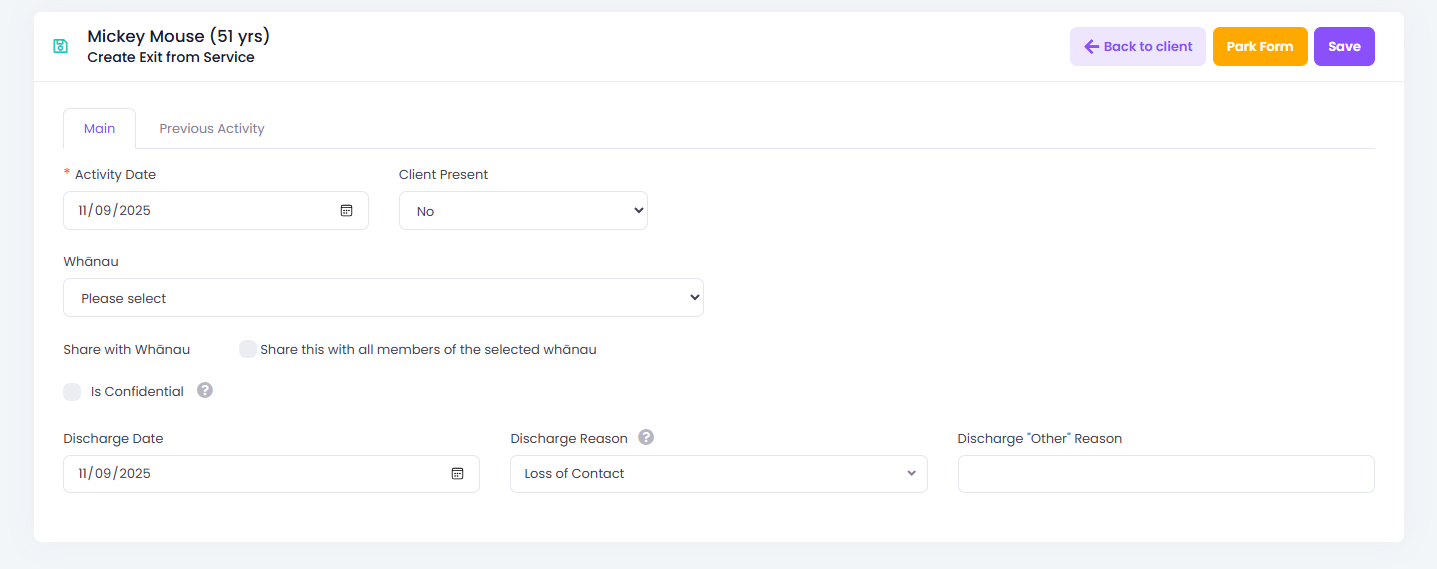
Exit from Service
Use this Activity to record when a client or Whānau exits the Whānau Ora service.
Once completed, the client will be removed from the service in Kotahi.
Steps in Kotahi:
- Open the Exit from Service Activity.
- Enter the discharge date, select the reason for exit, and add an Other Reason if required.
- Click Save to complete the form. ✅