Tags
Tags are keywords or terms assigned to clients. They help describe and categorise clients, making them easier to find!
Planning your Tags
Tags can be really powerful when used well! It's worth spending some time thinking carefully about how you might use them.
It's a good idea to think of them as easy ways to categorise your clients. If you need to split or search your clients by age then you might want to add an 'Elderly' tag. Conversely, you may want to find clients who need language support.
There's obviously no right or wrong answer, but bear in mind that you probably want to use no more than 6-8 tags, otherwise client records will start to look cluttered and their value might get lost. We strongly recommend setting up a Primary Client (or similar) tag. This will make it much clearer who to communicate with as the lead person in the whānau.
Configuring Tags
Only your Admin user has permission to create/configure tags for your organisation.
If you don't have an Admin user - or you don't know who they are - then get in touch!
Admin users need to go to the Tags List page.
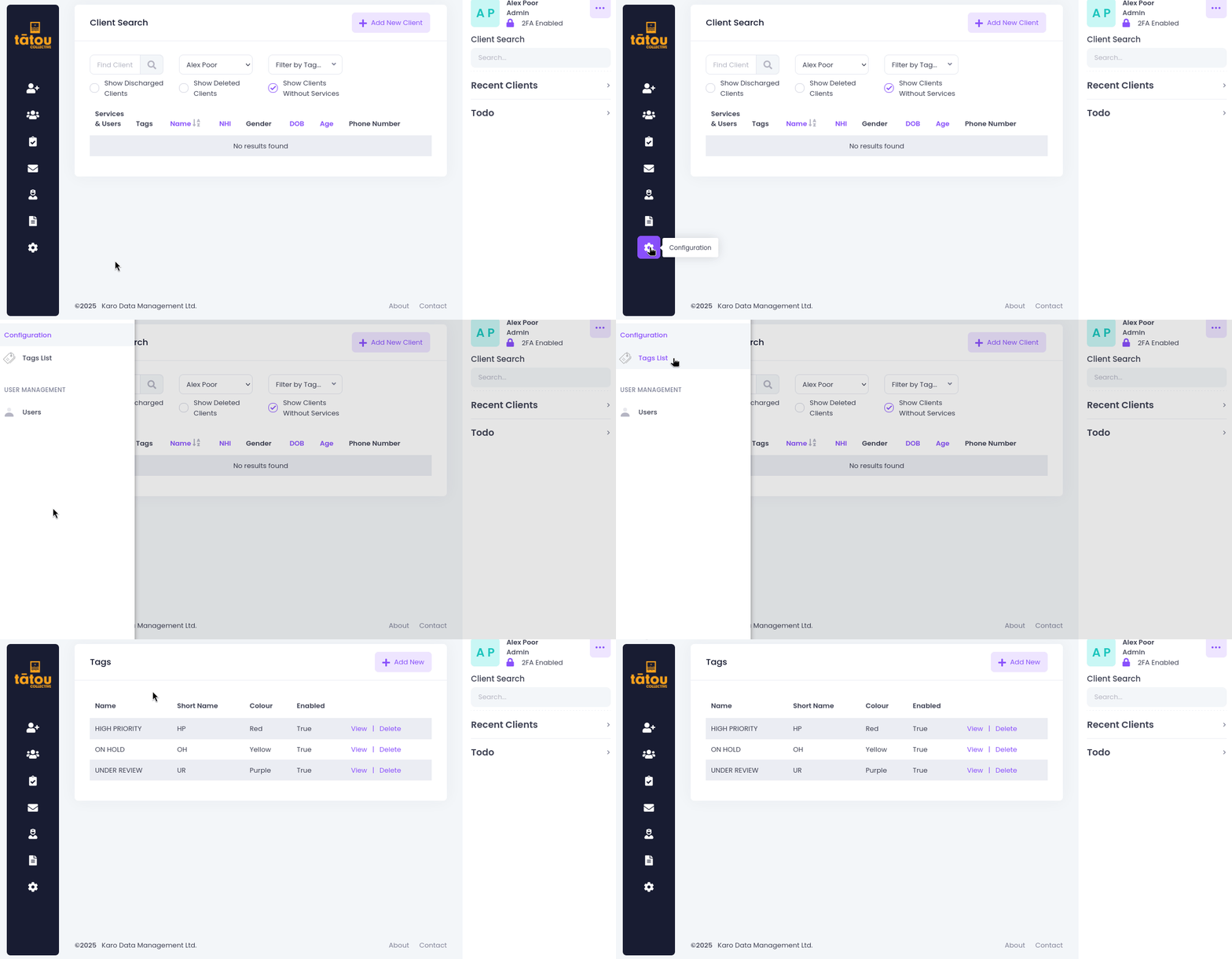
From here you can add new Tags or edit/delete existing ones.
The Tags you configure here will be visible for every user in your organisation
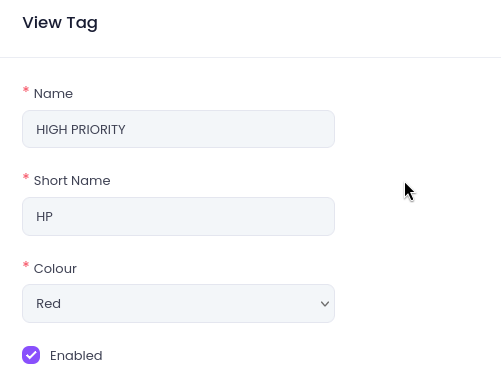
Tags in Kotahi are made up of 3 main components:
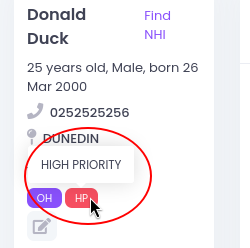
- Name. Full name of the Tag (eg. High Priority). This is visible if you hover the mouse over a Tag.
- Short Name. Abbreviation shown on the tag itself.
- Colour. The colour of the tag.
For example, this configuration:
Will appear live in Kotahi as follows:
You'll also notice the 'Enabled' checkbox. Make sure this is checked for any Tag you want to use in Kotahi. If you want to temporarily deactivate one (or perhaps it's only needed from time to time), then it's better to uncheck this rather than deleting the Tag itself.
Deleting and unenabling
What's the difference?
Firstly, it is not possible to delete a Tag if it is assigned to any clients. All tags can be unenabled at any time.
Unenabling a Tag means that it is no longer possible to assign it to clients. It will remain on clients who already have this tag, and it can continue to be used for filtering/searching as normal.
Deleting a Tag means that it is completely removed from your Kotahi. It will no longer be available to add to clients, and it will not appear as an option in the Client List filter.
Using Tags
Once configured, there are two main ways that Kotahi users will utilise them - assigning Tags, and using them to group clients. We'll look at each of these next.
Assigning Tags
Any Enabled Tags can be assigned to any client. How you use them is completely up to you.
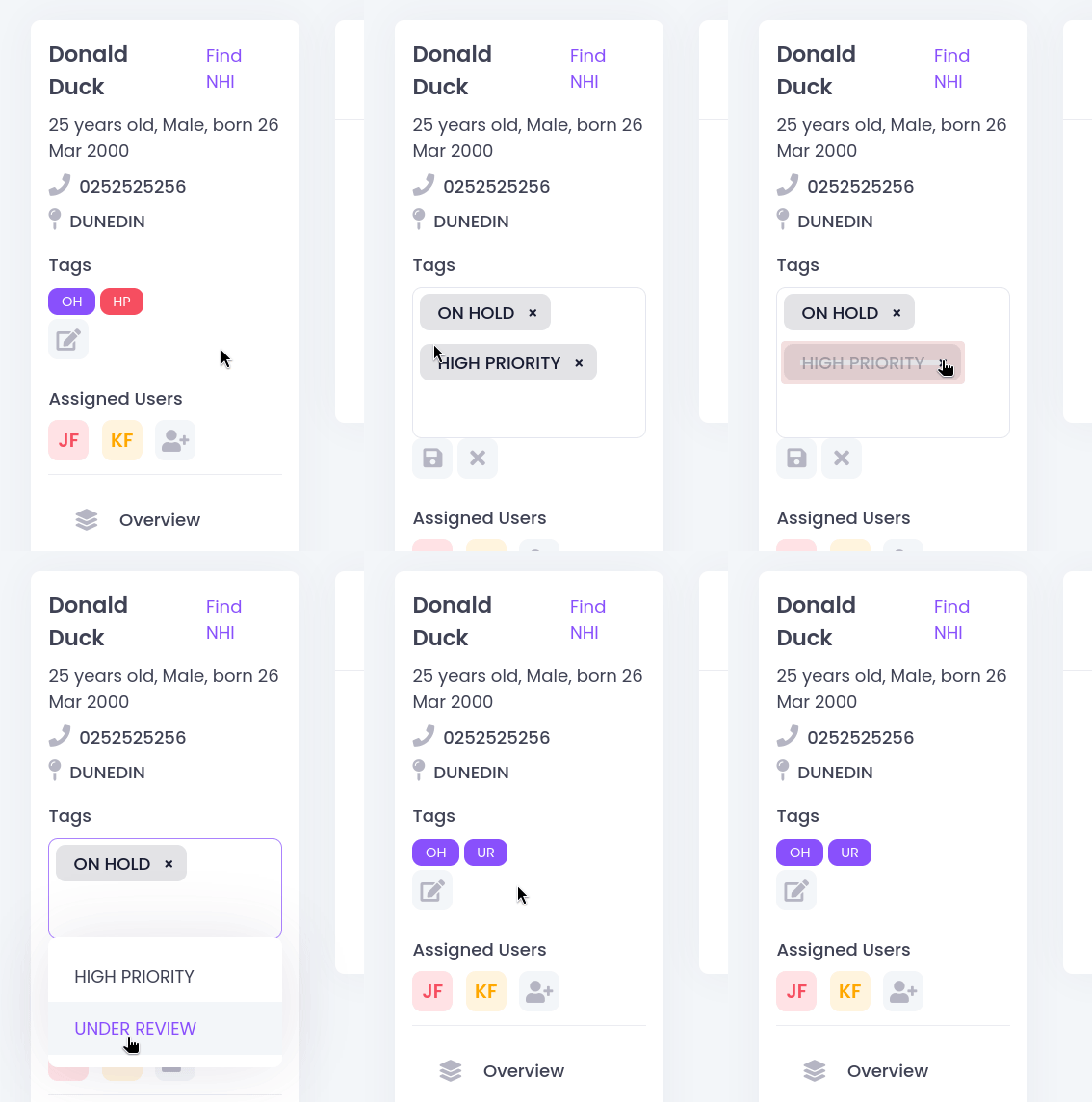
On the Client Overview page, you will see a space for Tags near the top left. Any existing tags will show up here, and you'll also see a grey 'edit' icon underneath.
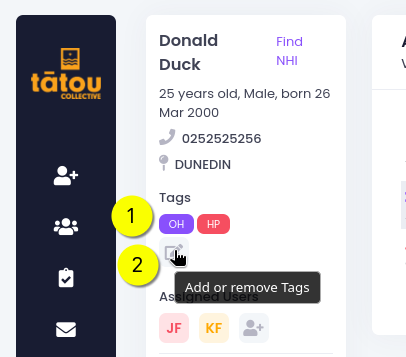
Clicking on this edit button changes the view. Remove an existing Tag by clicking the delete button, or add a new one by clicking in empty space inside the box, and picking an available one.
If you make a mistake, or want to go back, click the X icon below; otherwise, use the 'save' icon to keep your changes.
Searching by Tags
As we saw previously, Tags can be used to filter the Client List. Note that if you have multiple selected, then you will see any client who has any of those tags - it is not possible to filter here only for clients who have all the selected tags!
The Tags filter box is 'multi-select'. This means that if you have one Tag selected, and you go and select another one, you will be viewing clients who have either of those tags assigned. If you only want to see the newly selected tag, you'll have to go back and deselect the original one.