Understanding Client records
A video version of this page is available here.
Navigating to a client takes you to the Overview page, and there's a lot going on here. Let's take a closer look at all the things you can do here.
Alerts
If an Alert or a Warning has been configured for this client, then this will be the first thing you see.
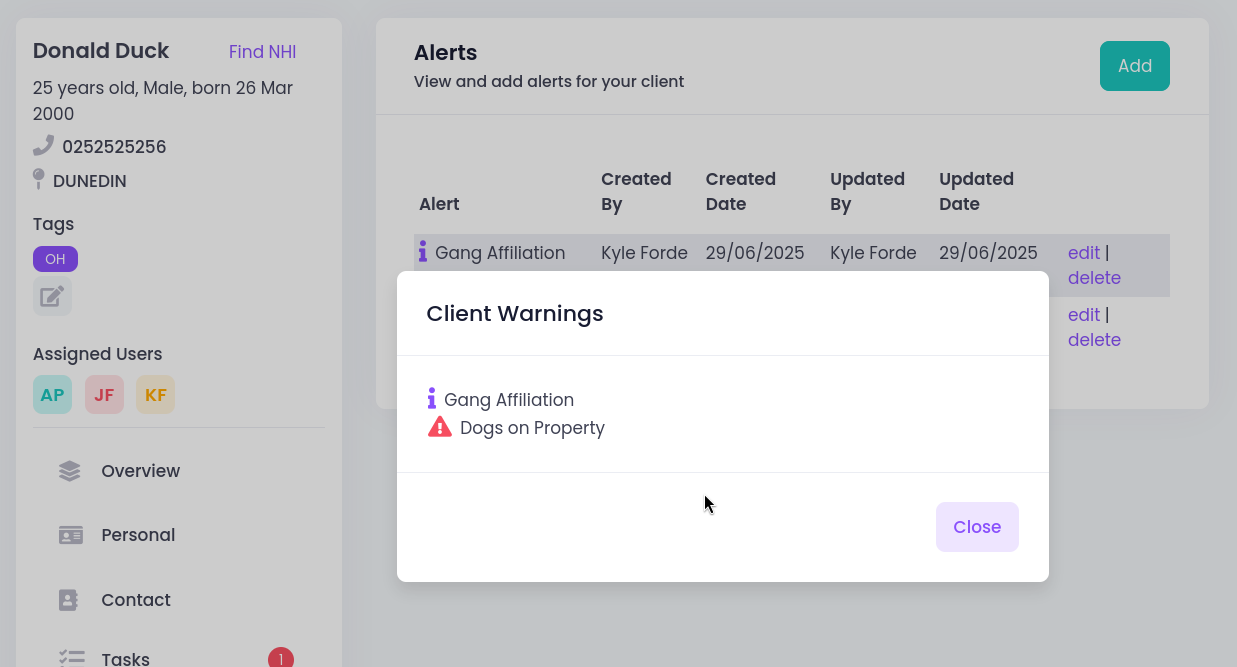
Using Alerts or Warnings is a way to make sure that any important information is flagged to anyone viewing this client's record. You can use these however you like, but they are particularly useful for things that might pose a risk to staff health and safety in some way.
There is no practical difference between an Alert and a Warning. They are simply ways of flagging the importance of a piece of information you want to display.
You can easily Delete an existing Alert/Warning from this screen. Note that the screen will now tell you there is a deleted Alert.
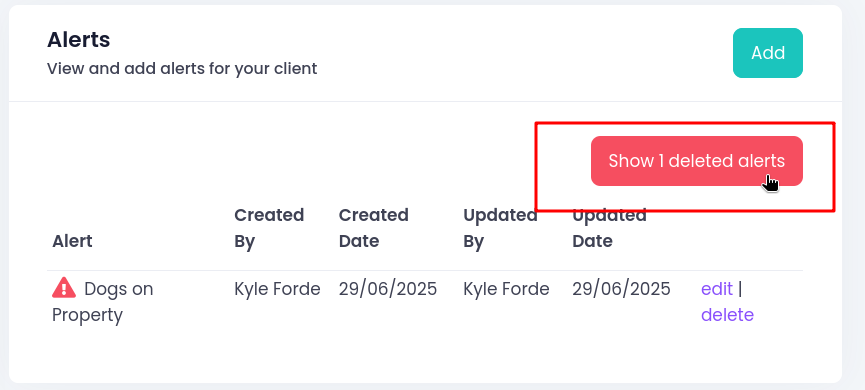
This can be useful for case reviews, or seeing the kinds of risks flagged historically for this client. Similarly you can Update an Alert - the revised Alert will show as usual but you will see it has been updated and by whom.
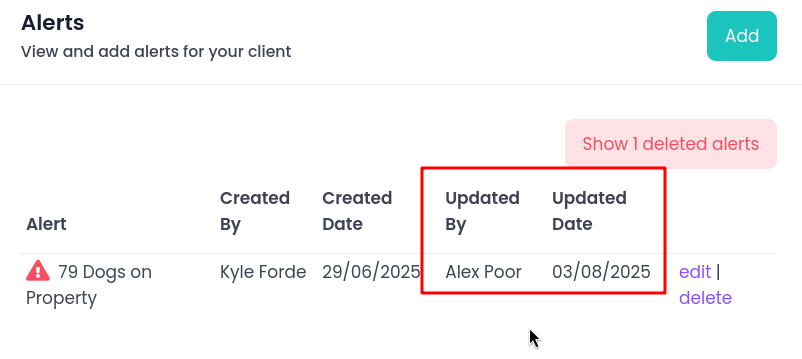
Any User can Edit or Delete an existing Alert. It might be useful to also add a Case Note for context (we'll come back to this!).
Overview
If there are no Alerts you will normally land on the Overview page. There's a lot of information here! The key sections are highlighted below.
Client details
In the top left are key details about this client.
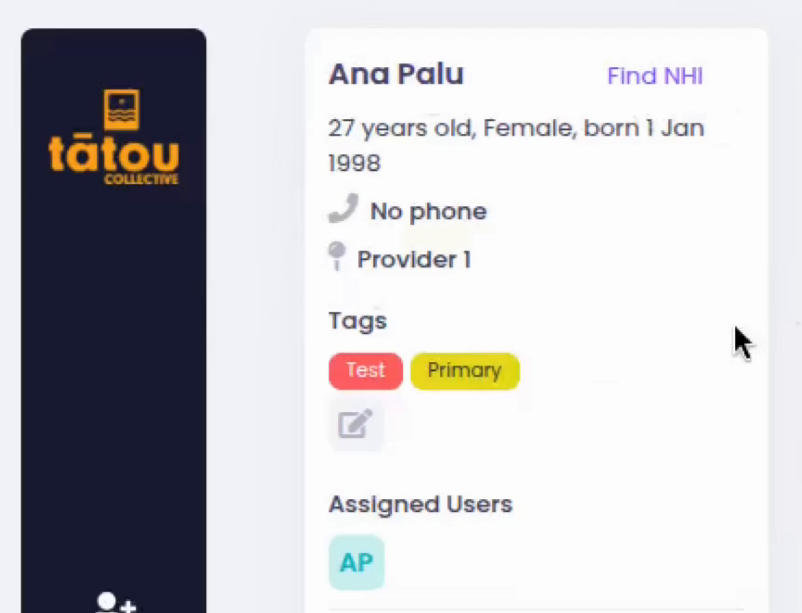
If there is no NHI currently recorded, then clicking Find NHI will take you to the same search tool we looked at in Adding a new client.
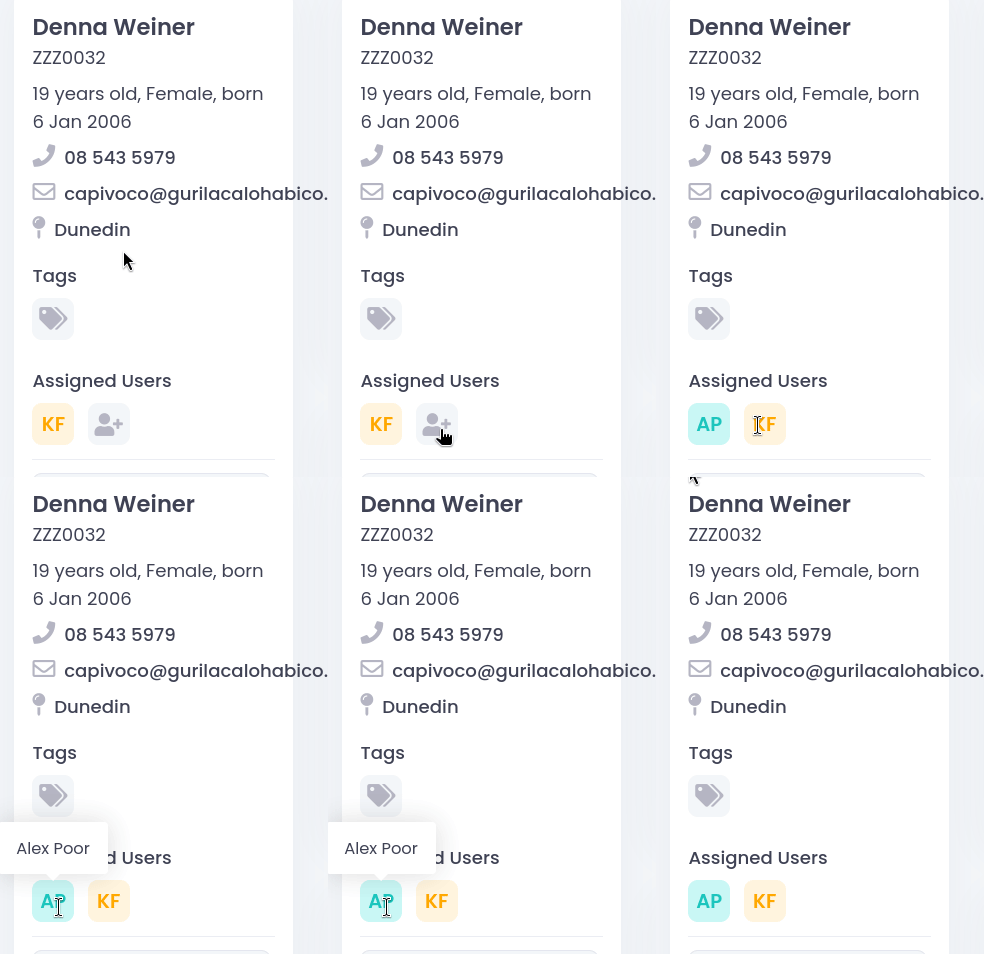
You will also find client Tags here, as well as the initials of any assigned users.
You can quickly add yourself as an assigned user, by clicking the grey icon here.
Services
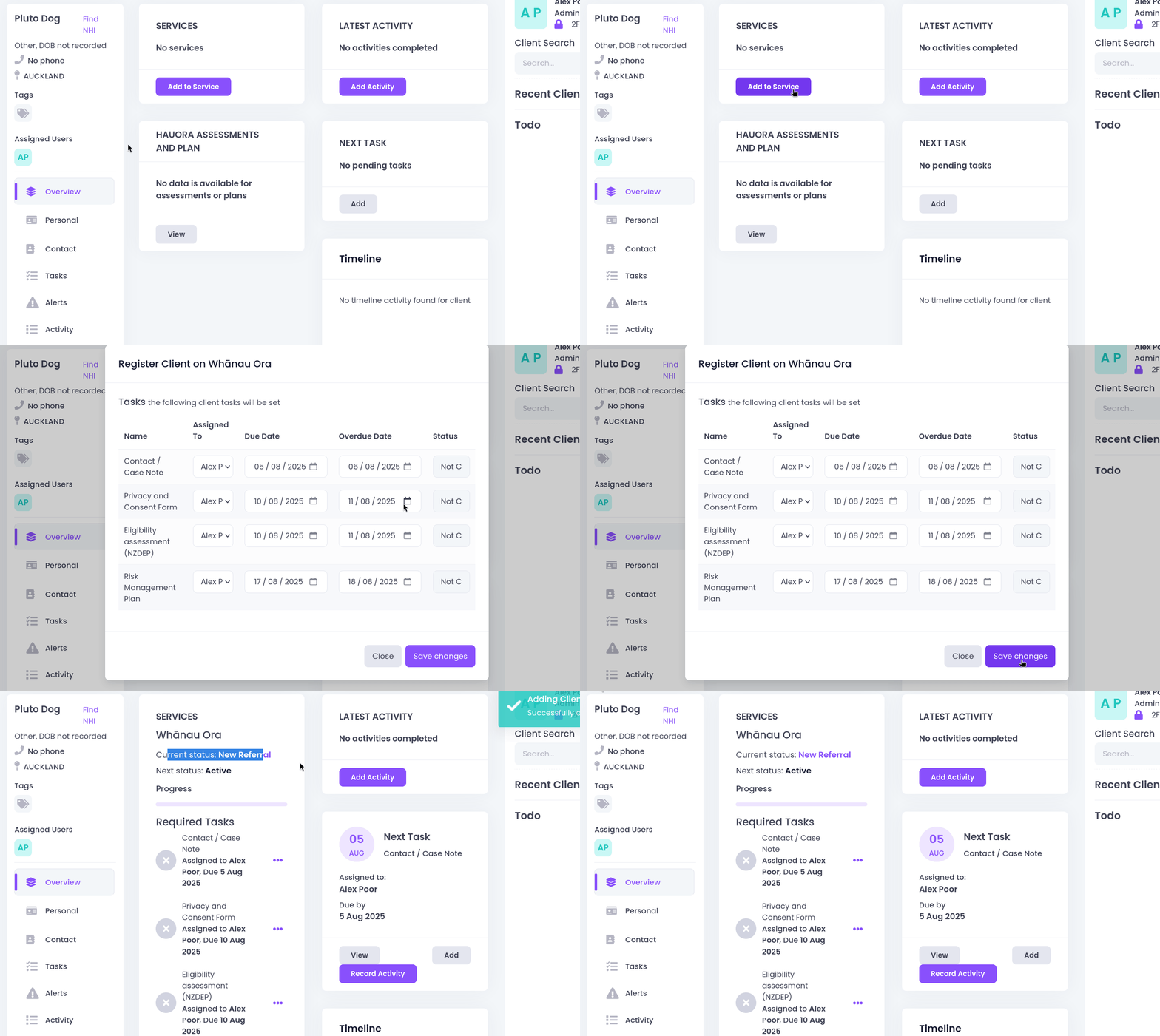
Moving towards the middle, the Services box shows a summary of their enrolment in a service. As we saw in Adding a new client, most users will only see Whānau ora here.
You'll see the Current status of the referral here. All new clients will be shown as New Referral. Completing a Task/Activity for a client will change this to Active. Finally, if a client has been exited for some reason then it will show Completed. This means that the Referral is closed, and does not necessarily mean that a Whānau goal plan has been completed.
If you see a client that does not have a service yet, but you know they are a Whānau ora client, then you can add them to the service here.
Latest Activity
Further towards the right, you'll see some detail around the most recent Activity recorded for this client.
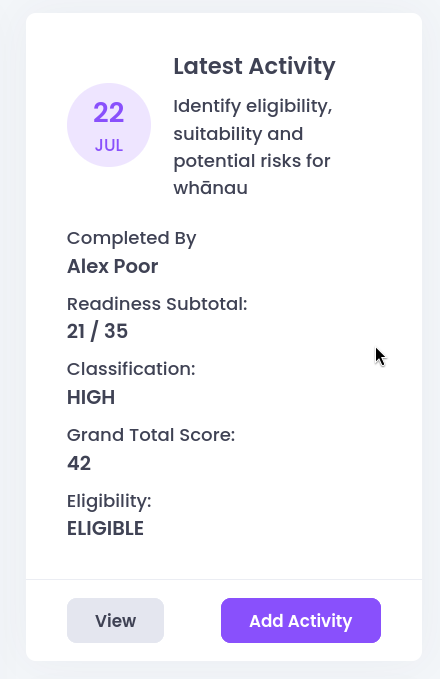
In this example, most recently we did an Eligibility assessment and you can see some key data here. You can click View to go into the activity and read the whole thing if required.
An Activity in Kotahi is a form that asks you to enter structured information. Some examples are the Eligibility assessment or use of the Flexifund.
Timeline
In bottom right you'll find the Timeline. This shows a quick glance view of everything that has happened with a client, in date order.
Distinct from Latest Activity, the Timeline will show absolutely anything that has been added or edited against this client.
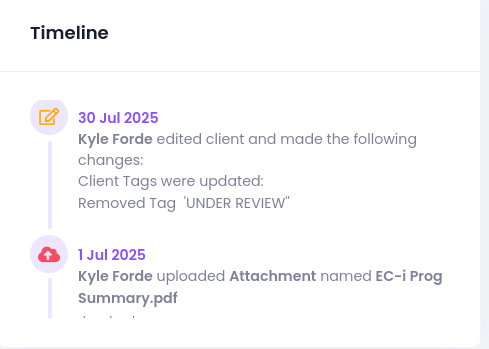
In this example we can see that changes to Tags, or adding an attachment, are examples of the detail we can see in the Timeline.
This is a really useful tool for quickly seeing where a client is at in terms of engagement.
Personal
Moving back to the left menubar, Personal lets us review name, date of birth, gender and ethnicity for a client.
Any of these can be changed after clicking Edit and then making sure you Save the changes.
If you completed an NHI search but no GP enrolment was found, then you can manually update it here also.
Contact
Edit this page to update contact information such as phone or address.
Tasks
Tasks are a very specific thing in Kotahi and it's important to understand how they work.
We'll focus on this later.
Alerts
This screen will show Alert details, and allow you to remove or update them. We already looked at this near the start of this page.
Activity
Activities are a key part of Kotahi. They are where important structured information is captured, so that you can stay on top of important things like:
- Maintaing Risk Management or Safety plans
- Assessing eligibility
- Running total of Flexifund use, and
- Recording any interactions related to this client/Whānau.
Clicking here will take you to a date ordered list of activities.
Note that any forms which have been started but not completed (Parked) will always show first here.
Just click on the Activity name to read the full entry.
If you want to only view certain types of Activity, you can use the filter box at the top.
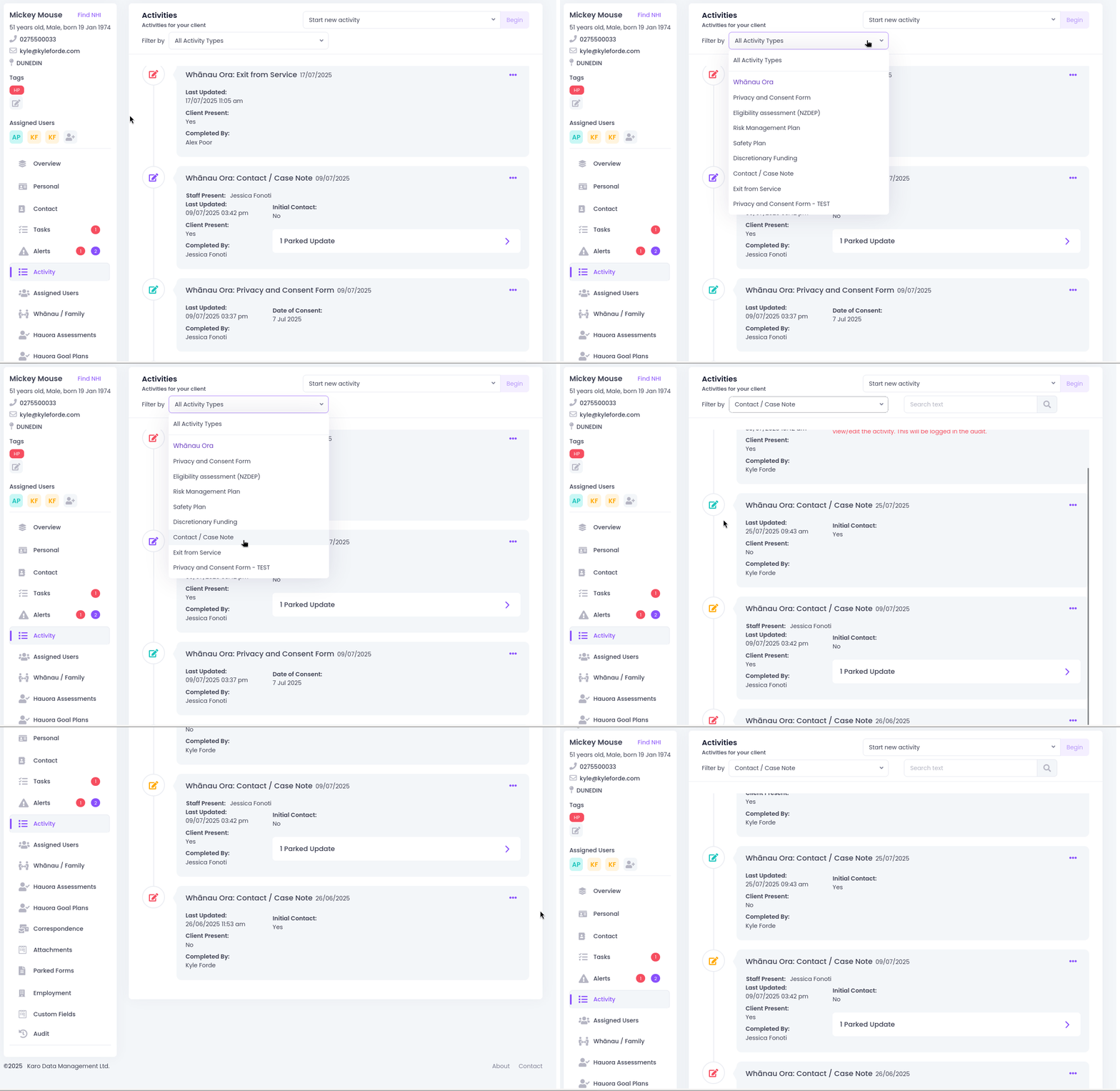
From this page you can also begin a new Activity of your own! We'll come back to this.
Assigned Users
The Overview) page shows a summary of the Assigned Users for this client. Using this menu item shows you more detail.
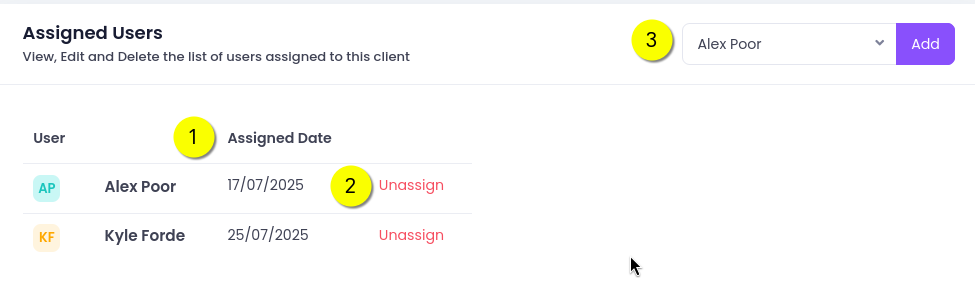
First you can see when particular Users were assigned to this client. Clicking on Unassign next to a user will immediately remove them from this client. Finally, use the select menu at #3 in the above picture to quickly add users if necessary.
An Assigned User will see the client in their Client List and they will also be reminded about Tasks required.
Whānau / Family
We've already seen this screen when we looked at Whānau previously. As already noted, Users can come here any time and add clients to a Whānau, or define a new Whānau entirely.
Hauora Assessments and Goal Plans
These 2 items are central to working with Whānau - we'll deal with them in detail later.1
Correspondence
This facility is not yet available to Tātou providers, but we will be rolling it out in the future.
Attachments
You can store 'soft copies' of documents against a client record in 2 main ways:
- Going to the Attachments menu item and uploading directly from there.
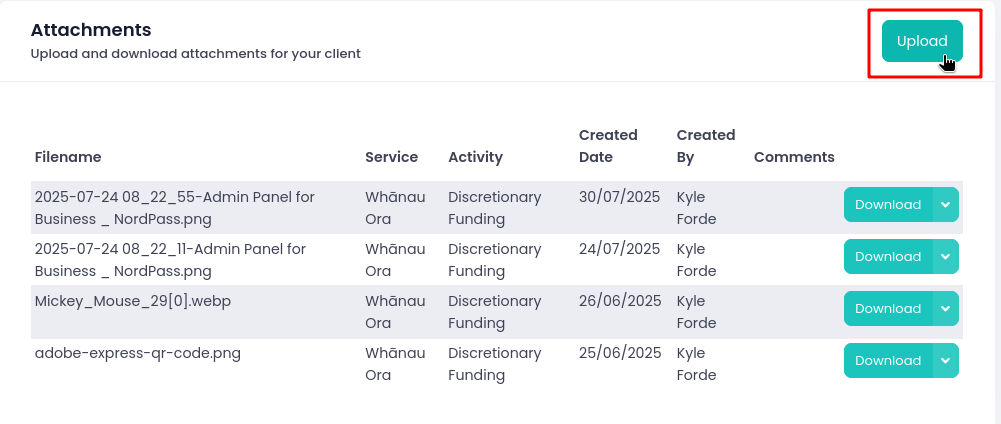
- Adding an attachment to an Activity (where available). In this scenario, the attachment will be directly accessible from that Activity, and also available in the list shown here.
You can add as many Attachments to a client as you like!
Note that when uploading Attachments via this menu option, you can also add metadata such as Comments to provide extra context if suitable. Comments will appear in the main window here, so they can be very useful to make clear what the document relates to - if it is not obvious from the Filename.
Parked Forms
As we saw above under Activity, a Parked Form is an Activity that has been started but not yet completed.
Parked Forms can be viewed using this menu option, and this is a really useful thing to stay on top of. Going into this menu item will show all Parked Forms for the client; from here you can Finish or Delete each one.
If you are seeing a lot of Parked Forms and Activities not being completed in time then this is a useful conversation to have with the Navigator team.
Employment
This screen mirrors what we saw when creating a New Client. If you ever need to update this information then just click Edit, and remember to Save your changes.
Custom Fields
These are sometimes used to capture specific information about a client. However, they are not utilised in the current version of Whānau ora provided by Kotahi.
Audit
The Audit facility is a place where all interactions with the client record are logged. While there can potentially be a lot of detail available here, remember that the aim is to keep track of who has done what. It is particularly useful for:
- Responding to a client request for information about who has accessed their information.
- Providing access information for some other enquiry.
- Understanding a sequence of events.
By default the 10 most recent actions are logged, but this can be extended by a further 10 actions each time you click Show More.
Footnotes
-
See Needs Assessment and Whānau Plan. ↩