Managing Users
In Kotahi there are two main types of user: an Admin and everyone else. Let's have a closer look.
Admin Users
An Admin user is given extra permissions in Kotahi to do 2 things:
- Manage Tags
- Manage Users.
The Admin user could be anyone in your organisation - it's up to you to decide!
In larger organisations you may have Team Lead or Administrator roles, who are best placed to take on this role. But it could just as easily be done by a Navigator as part of their normal workload - it's up to you.
Every Provider needs an Admin user, because it's important you can be self-sufficient with adding or removing staff as your organisation grows and develops. If you don't have one yet, then get in touch!
The Admin user can also give these extra permissions to other staff if necessary. For example, if your Admin is going on leave then they can simply assign the Admin role to another user so that you remain self-sufficient.
It can be useful to have more than one Admin, but be aware that this user will be able to access all client records.
Adding a new user
Admin users should go to the Configuration menu and pick 'Users':
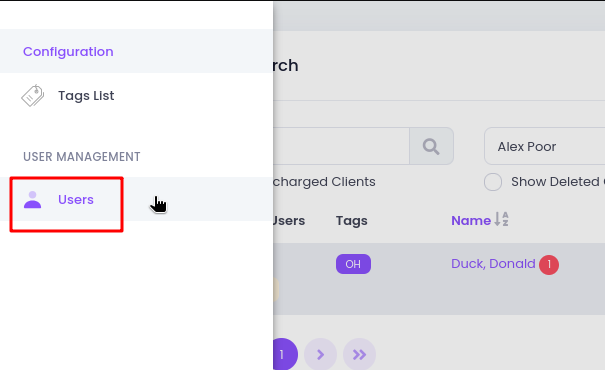
This will bring up a list of user accounts.
Anyone who has a red cross under the '2FA Enabled' column has not logged in, or set up their account properly yet.
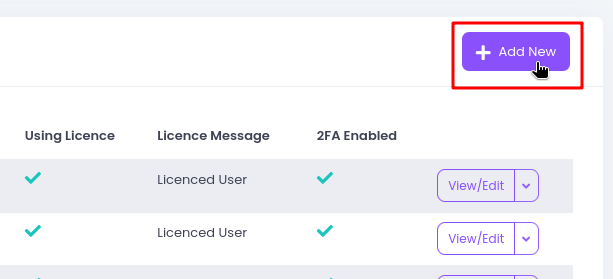
Since we're adding a brand new user, just click 'Add New' towards the top right.
On the next screen there are a number of options. We'll look at them one by one:
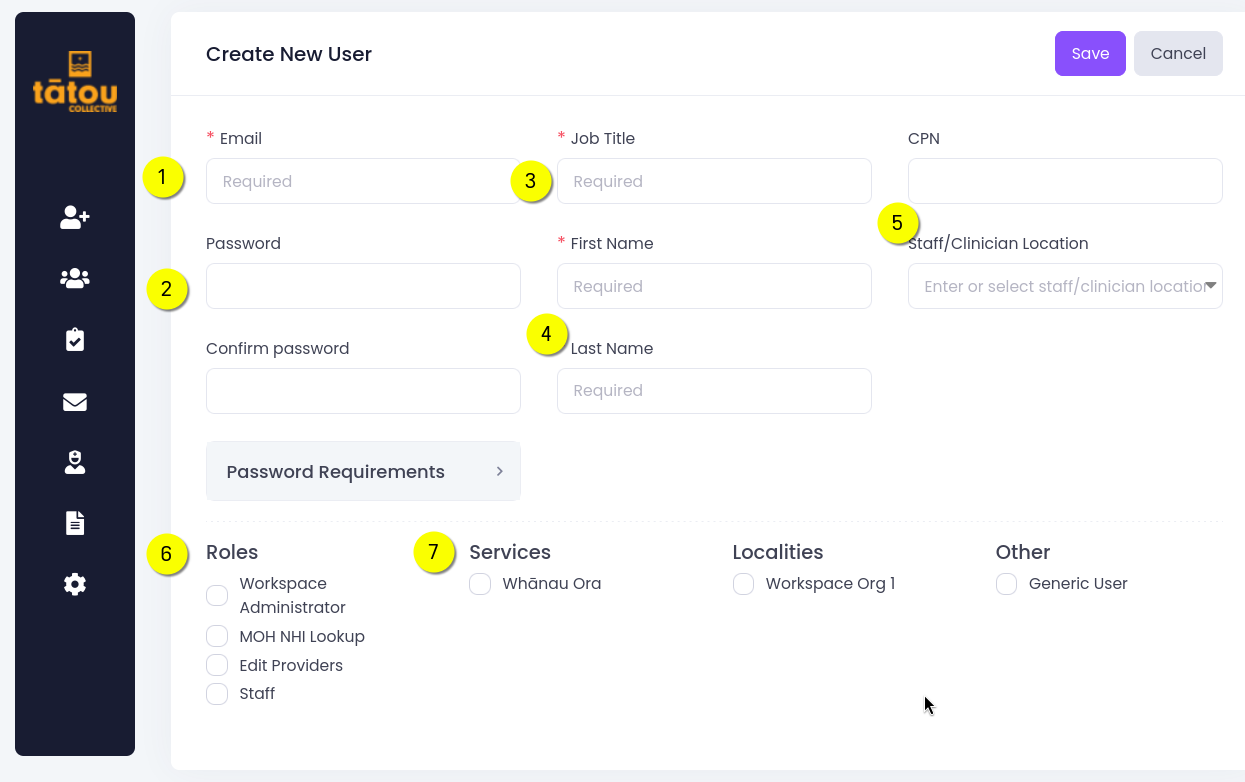
1 Email
Ideally this should be the users work/organisational email address. Please ensure it is correct, otherwise the Forgot Password process won't work!
2 Password
You'll have to manually set a password for the new user that meets the requirements shown in the Password Requirements box. However, you will not need to share this with the user since they will be using the Forgot Password) process.
3 Job Title
You may enter anything here, this is simply a descriptor for your users. In most cases this should be Navigator.
4 Name
The user's name is entered here, and will show up in any activities recorded by the user as well as for filtering the Client List.
5 CPN / Location
These fields are not used in the Whānau ora context, so please ignore.
6 Roles
This is perhaps the most important part!
- Navigators require the Staff and MOH NHI Lookup roles as a minimum
- Admin users should have the Workspace Administrator role.
7 Services / Localities
There is only one option for each of these and they must be ticked to set the user up correctly.
Localities can enable more complex workflows across geographical regions (for example, national programmes operated via IMPBs), but we aren't using them for Whānau ora.
SUCCESS! You just added a new user. Now you just need to let them know their account is ready, and they should follow the Forgot Password process.
User setup issues
Some common issues and suggested resolutions are listed below.
I didn't get my password reset email
There are 3 possibilities:
- The email has landed in your Spam or Junk folder. Have a look there! 🧐
- The wrong email address is configured for your account.
- The email address for your account is misspelt or entered incorrectly.
I forgot my password
No problem! Just go back and follow the Forgot Password process.
Consider using a password manager to avoid this in future.
I ran out of recovery codes
You should really only use these in an urgent/emergency situation, where you have lost access to the 2FA app on your phone.
If you do need to use a recovery code, and anticipate not retrieving access to your 2FA app, then ask your Admin to help you set 2FA up on a new device.
I have a new work phone and I need to switch my 2FA on to it
Contact your Admin user and ask them to reset the 2FA on your account.
Admin users only. To reset 2FA just uncheck the 2FA box on the user's account configuration page.
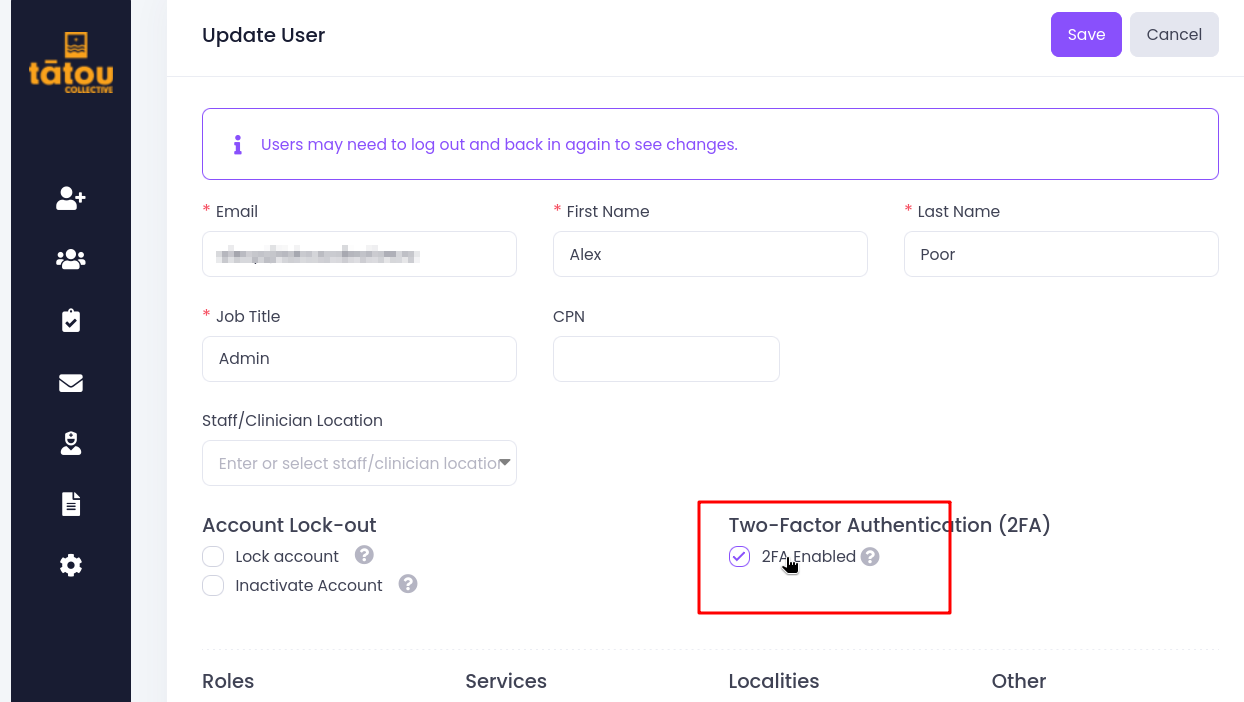 Next time they log in, they'll be prompted to set 2FA up again 👍
What IS this 2FA thing?
Some useful background info is available on the NZ government's cybersecurity info site.
Once you have set up your 2FA app in Kotahi, it will continually generate 6 digit codes. Whenever you are prompted, just enter the 6 digit code shown in the app.
Some basic security guides are available from the above site in Samoan, Tongan, Fijian and Cook Island Māori.
Non-admin Users
Any users who aren't Admin can do anything at all in Kotahi, except configuring other users and tags.
The default model in Kotahi is that anyone can access anything. However if a User does access something they shouldn't, then there are robust mechanisms in place to identify this.
It is up to you how you configure and use your Kotahi account. However, Privacy Act principles should always be considered when deciding who needs to access client data within your organisation.