Adding a new client
Double check the client isn't already in Kotahi before proceeding!
In Kotahi, the focus initially is on individual clients. We'll look at how to define Whānau later, but you'll need to add each member as an individual first.
To get started just client Add new Client in the left menu.
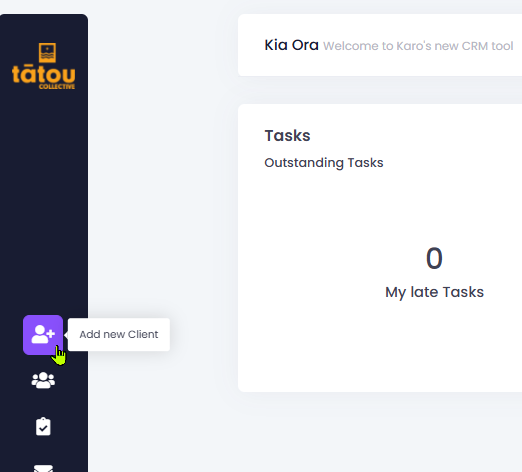
You'll now see a new window with seven key steps shown to create a full client record. Not all of these are required initially, but if you have the info then it's worth recording while you're here.
Personal Details
The first section sets up some core personal information about the client. In terms of data integrity, it's important to consider two things here:
- The client is not already in the system and we aren't creating a duplicate
- The client is who they say they are.
NHI Lookup is available to help with both of the above points and we recommend you use it every time you add a new client.
Only perform an NHI search if you already have the client's signed consent to do so.
NHI search
You can find key information on NHI at Te Whatu Ora
NHI is a unique identifier for every person accessing a health service in Aotearoa. The search facility in Kotahi connects directly to Te Whatu Ora. Every search is logged and can be reviewed as required.
Not every client will have an NHI! This may particularly affect where Mamas have not access antenatal care, or clients are on an RSE visa.
To find your client's NHI, use the NHI Lookup button.

A new window will pop up.
Enter as much information as you can here, to make the search more effective. If you don't know the date of birth then you can estimate it and use the age range options. Click Search and you'll see a new window with potential matches.
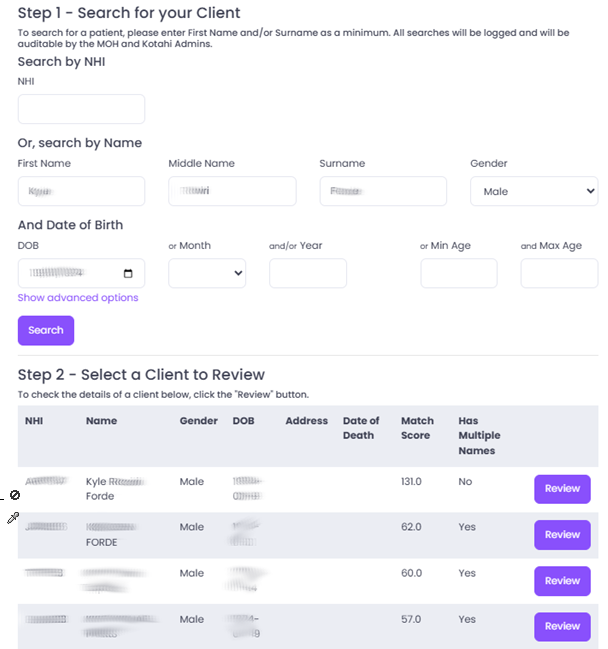
You will generally see a few potential matches here, even if your search was very precise. Note the March Score column - this will calculate the closest match, and show them in order of likelihood. In this example, the top match has a score of 131 which is much higher than the next possible match.
Click into Review and double check the information. This will give you a better gauge of whether this is the correct client.
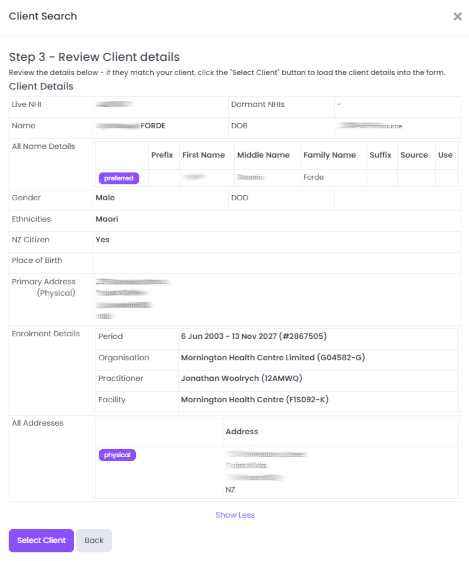
For example, if the ethnicity shown is 'Other European' but your client is 'Tokelauan' then it probably isn't the right client. However, people can identify with multiple ethnicities over the course of time so do not rely on this alone!
If you're happy with the match, then just click Select Client and the NHI information will be copied into Kotahi.
If there is no match, or the potential matches are definitely not your client, then exit this screen and continue with the below steps.
You will not be able to proceed onto other sections until mandatory fields have been completed here. If you click Next without completing them, Kotahi will prompt you to do so.
Whānau
You can choose whether to set up the Whānau now or later - it's up to you.
If this is the first whānau member you are adding, you might want to choose Create new Whānau / Family at this point. We're going to skip it for now - it's easy to come back and modify whānau relationships at any time.
Contact Details
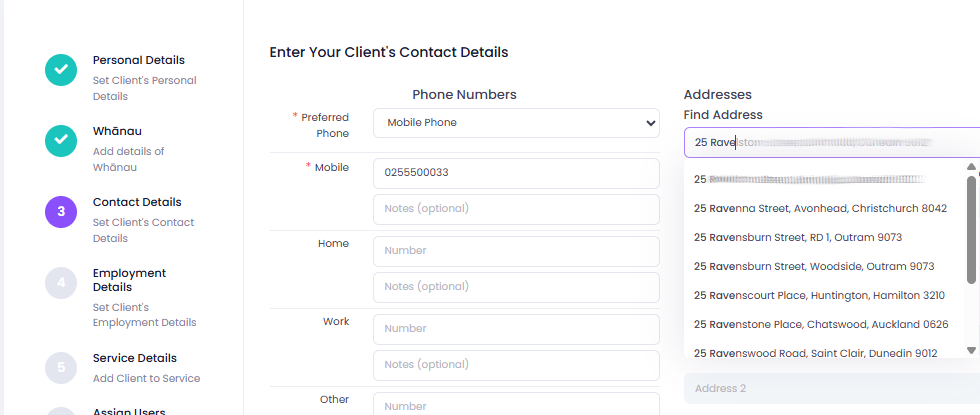
Here you can select a preferred phone number for contacting the client, as well as selecting their address.
Even if you have saved address information from the NHI Search step, you should always use the Find Address box here - this ensures that the address has been validated properly, and we have found a NZ Deprivation score to use in the eligibility screening.
NZ Deprivation score
Please refer to ehinz for an overview
The New Zealand Index of Deprivation (NZDep) is calculated after each Census, and aims to show which geographical areas are more or less deprived compared to others. It is used extensively in the health system for funding and eligibility purposes.
This means that even though an individual gets a score, it is based only on their address and may well not reflect their whānau context.
For example, Kainga Ora have tried to distribute social housing widely so that some whānau with complex needs may well live in an area that isn't considered 'deprived'. This score should therefore only be used as context and as part of a more comprehensive assessment.
Employment Details
If you have this information then enter it here. Employment status can be tracked over time and forms part of whānau outcomes where needs have been identified around finance or employment.
Service Details
In Kotahi a Service might be a contract (Wellchild), a team (Child health) or a discipline (Mental health). In our context there is only one service available - Whānau ora.
Existing Kotahi customers may have more options available here.
You can choose Don't register client for service here if you want, but it is not recommended. Selecting Whānau ora will automatically set up a range of baseline activities that need to be carried out.
We'll come back to Tasks and Activities later. For now, be aware that you can assign the default tasks to another User if that is appropriate. You can also change the date that activity is due. Again, we do not recommend this since the due dates are automatically configured to meet expectations around service delivery and quality measures.
Tātou Collective are able to access anonymised data on completion of these core tasks.
Assign Users
You will automatically be ticked as the assigned user for this client.
A client can have any number of assigned users, however, and if you want to include this client in a colleague's caseload then you can tick their name here.
It is super easy to add or remove assigned users at any time so don't worry too much about this for now!
Finish
The last page will show you a summary of everything you set or entered. Check over it carefully and either go back to correct, or go ahead and click Create Client.
Once complete, you will be taken straight to the overview page for your new client.